
Moodle’s Completion Tracking feature provides a straightforward way to help students see what activities they have Completed and what is To Do, allowing them to organise and motivate their leaning. Which is particularly important with teaching asynchronous courses. For lectures, completion tracking offers visibility of student engagement, making it easier to identify students who may need additional support.
In this post we are going to be looking at setting up Completion Tracking on your Moodle page, using this to add restrictions to activities and resources, and adding a Completion Tracking block to your page.
What Is Completion Tracking?
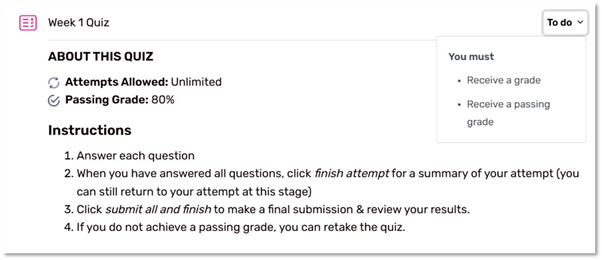
Completion Tracking allows for activities or resources to be marked as either To Do or Completed. Students see a ‘To do’ list for an activity or resource, showing what conditions must be met before it is marked as complete. Conditions can be either automatically completed (based on set conditions) or manually completed (students ‘Mark as done’ themselves).
Ways to use it:
- Mark lectures, readings, and weekly tasks as “complete” when viewed.
- Require completion of a video before releasing a quiz (using restriction settings).
- Set up a pathway where Week 2 unlocks only after Week 1 material is completed.
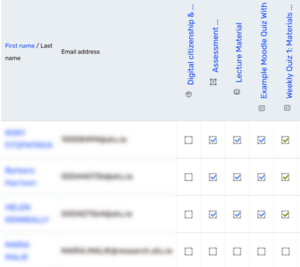
- Monitor class progress using the Activity Completion Report before assessments.
- Add a Completion Progress block to your Moodle Page – a visual, colour‑coded progress bar that shows the status of student activity completion.
How to Enable Completion Tracking:
- Go to your Course settings
- Turn on ‘Enable completion tracking’ under tracking completion
- Then, in each activity/resource settings, go to ‘Completion conditions’ and set the conditions for completion. Examples of conditions that can be set:
- Student must view the activity
- Student must submit an assignment
- Must post discussions (set number)
- Student must receive a grade
- Save changes activity/resource settings
With Completion Tracking enabled you will now be able to use this feature with Moodle’s Activity Restriction.
What is it?
Restrict access is a Moodle feature that allows you to control when students can access an activity, resource, or section. By applying conditions, you can make content available to students only when these conditions are met. For example, on a specific date, being part of a particular group or after an activity is completed. This helps guide students through learning in a structured way.
How to Enable Restrict Access using Activity Completion:
- Open the settings for an activity or resource and go to the setting ‘Restrict Access’ section.
- Then add your conditions, choose Activity Completion.
- You can then select the activity they must complete from the drop down lost along with the condition that needs to be met to gain access.
- Save changes activity/resource settings.
Another Moodle feature that can be used with Completion Tracking is the Completion Progress Block.
What is it
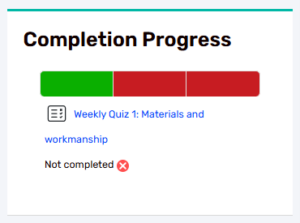
The Completion Progress block is a visual, colour‑coded feature that gives students an overview of their progress through a course. It tracks activities that have ‘Completion Tracking’ enabled, showing students what is completed and what is not completed.
How to Add a Completion Progress Block:
- You will need to have completion activities set up for at least one activity or resource.
- In the right-hand column, select Add a block.
- Choose Completion Progress from the list.
- A Completion Progress block will then be added.
- You can configure the block settings (optional) by clicking on the three dots and then the Configure Completion… This will allow you to control how and where the block appears along with what activities or resources are shown in the block.